Do you get the idea that Sketchup will actually be eclipsed by Revit for "Design" even by those who think life should be dumb and simple and inaccurate? Uhhh I mean those who use SKP.
Whether for better or not SKP is in most every Architect's hands and still has the perception (and to some degree reality) of usefulness due to the ease of creating those dumb, simple and inaccurate objects (and don't get me started on SKP adding parametrics... That does not make it BIM!!!).
Well, if you still find some people with reticence to fully use Revit because it's "too hard" to learn, or whatever -Boo Hoo- hey didn't they (almost) all go to University? or was that just an excuse for a prolonged Kegger?
But I digress; you may have begun to feel major recognition of the AEC industries' growing adoption of BIM; predominantly through the use of the Revit Platform; a shift in the industry punctuated by the exploding amount of content being created these days from Mfg's and more...
With that in mind here's another nice compilation of Revit Families for us and 'them' RevitComponents on blogspot is that place...there's also a fuller (?) pay site that you can get to from there. I like the links section too; though they could have linked to this blog ;-)!!!
Showing posts with label Revit Families. Show all posts
Showing posts with label Revit Families. Show all posts
Monday, June 29, 2009


Saturday, October 13, 2007
Slanted Volumes...I guess the Ramp tool isn't enough?
 I've been asked several times in the past few months to create (or show others how to create) Parametric Slanted Volumes. It seems that each time the people wanted to input & Constrain using different values: Well, here are 3 variations of such volumes, including the formulas necessary for their manipulation...(Also included in #'s 2 & 3 are a numerical Parameter that gives the Percentage of the Slope).
1: Control Parameters: Rise & Slope; Run is derived from them.
2: Control Parameters: Rise & Run; Slope is derived from them.
3: Control Parameters: Slope & Run; Rise is derived from them.
Nice!!!
First off use my Revitism: Think Twice and Place Once here...Do these parameters want to be Instance or Type? It's extremely important to choose wisely as changes to the parameters later on may create headaches...(if you use shared parameters, needing to change them later most assuredly will create nightmares (for real))
For these families I used Family Parameters (similar to the image below), all set to Instance and grouped under Dimension...

First, as with all Family Creation I made Reference Planes, Parameterized them, Flexed them at every new parameter and when they were all verified (and only then) did I create the solid geometry; locked to the Ref Planes.
So here are the parameters that are the basis for all three families: Rise, Run, Slope & Width.

Now that I've flexed and see that they work correctly I'll create a solid extrusion. I find it best to lock the extrusion Sketch Lines to the Ref Planes in this sketch mode; just be sure not to 'mix-and-match' lock locations if you lock the sketch lines lock all of them in this mode, don't lock some sketch lines here and other parts of the solid when back in the family editor, in relation to the profile in this case, as you'll probably break the family...

Be sure to use the Align tool and lock the solid to both Ref Planes, that are expressing the Width of the family... (This is OK here and does not constitute a mixing-and-matching of constraints)
 OK!!! So now the foundation is set and we're off to the races.
By using the Family Types tool set the parameters as such:
1) When Rise & Slope are the controlling Parameters, meant to drive the object use the formula: Run=Rise/tan(Slope)...remember to be case sensitive!!!

Here's a flex to test Rise & Slope...
 FILE>SAVEAS>whatever name you like.rfa
Do another immediate SaveAs and rename appropriately for the Rise & Run variation...
Then:
2) When Rise & Run are the controlling Parameters, meant to drive the object use the formula: Slope=atan(Rise/Run).
Here is where I added the Parameter Slope Percentage, as a Number, Instance, Family Parameter...That formula is: Slope Percentage=100*tan(Slope)

A flexing of Rise & Run, to ensure wholesome goodness. -Buttering the bread, as it were...

FILE>SAVEAS>whatever other name you like.rfa
3) When Slope & Run are the controlling Parameters, meant to drive the object use the formula: Rise=Run*sin(Slope).
The Parameter Slope Percentage remains as is: Slope Percentage=100*tan(Slope)

Here's a flex to test Slope & Run... Got sandwich meat? hee hee he said meat...(Props to Beavis...or was that butthead?)
 If you'd like to know what all the expressions are that Revit finds acceptable for use in Formulas go to that button...oh what was that called....umm....ohh....oh yeah: HELP...there is a great list there...
So all is good now in the Basic slanted object world (when the Ramp tool doesn't want to be used)...Now to throw a wrench into your worlds: Why not create a Railing (and all necessary Profiles) and use that for your Conveyor System???
Que Evil Laugh!!!
Mmmmmwwwwwwaaaaaahhhhhhaaaaaahhhhhhaaaaaa........
Thursday, August 09, 2007
Line Based Families 1: Kitchen Cabinets...OK, OK And a Trellis...
Firstly: these concepts and (maybe) all family methods can be transposed to many, many other families; at times exactly, at times similarly, at times just in spirit.
Consider, Plan, Think, Re-Consider, Re-Think, then Create.
Consider (what you want), Plan (the parametric needs), Think (about what is needed NOW... Remember you can always make the family progressively more complex), Re-Consider (how complex it needs to be), Re-Think (the final output needs...don't put in any more than you need but no less either), then Create (the best family you can). Also mix-in a conversation with others...this always helps prove or disprove perceived concepts and usually saves overall project time.
The Cabinet family we are about to create (well similar parameters to this, at least) can be used for many other families, one of which I will include a step-by-step of (in text format). It will be the main portions of a trellis.
More about the Trellis following the Cabinet below, so on with the Cabinet sheooow...(Yeah, I was watching a repeat of Elvis on the Ed Sullivan Show...sorry for that rhyme, etc.)
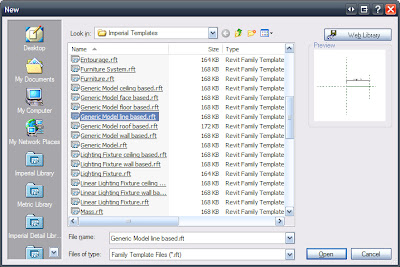
1) Create a new 'Generic Model Line Based' family.
 2) Change the "Length" parameter to 8'-0" via the "Family Types..." button.
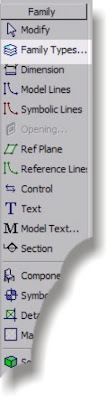 Just like this...
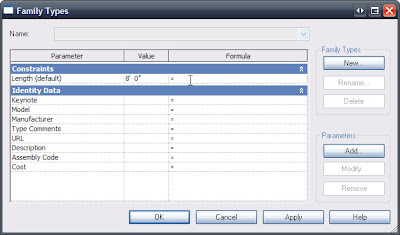 Good so far...
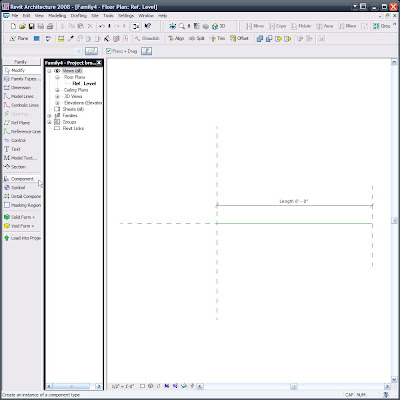
3) Load a Cabinet. (If you don't already know, this is what is called nesting a family. I like to call them bird families...) -yes that's a (bad) joke!
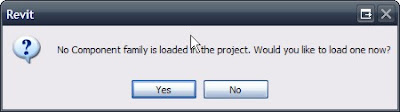 I am using the Double Door & 2 Drawer, as you can see.
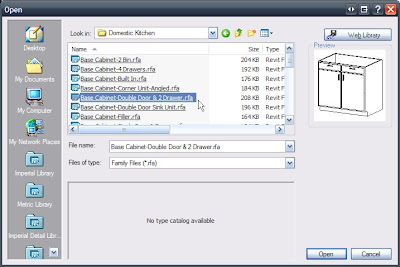
Note how this cabinet comes in at it's default size...we'll be synchronizing and locking that to a parameter later but since we haven't created the parameter yet we'll do some other necessary work first...
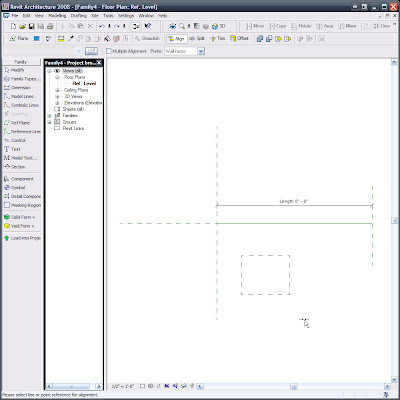
Such as Locking the Cabinet to the Ref Planes. (Note: To get this line based family to work this time I did have to re-do this locking after I constrained the objects to the upcoming parameters, (last time I showed a colleague this it worked fine, without re-locking...It's all about process) so be ready for the family to potentially fight you as you go...Flex every step of the way so it's not too painful.)
Align/Lock to the start:
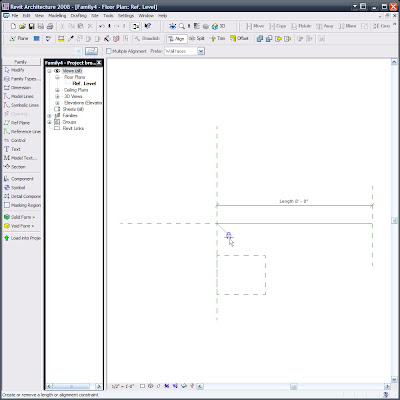
Align/Lock to the insertion point (Yes, the intersection of these Ref Planes is the insertion point, so if you need an offset insertion be aware of that):
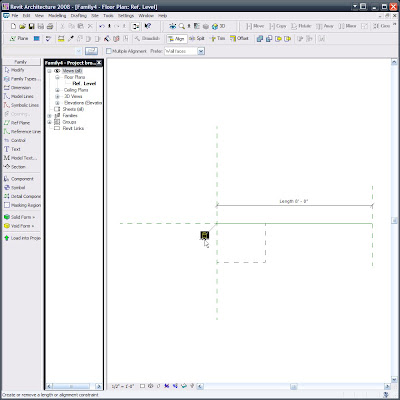
Where are now, #4)? I think so...No matter, the next one may seem odd no matter the number.
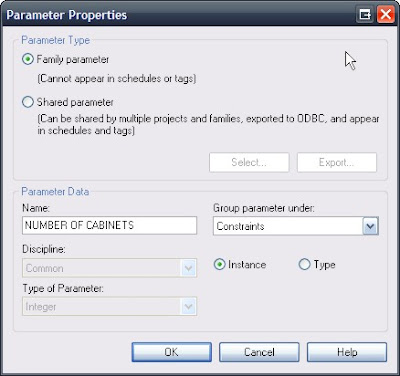
Array the cabinet 3 times; constrained, grouped & associated. Then select one of the array group members and select the Array Control Line, (the odd part is the Array Control Line disappears when you're able to select it) add the parameter "NUMBER OF CABINETS" (similar to the one that follows the next image) and it will then be associated to the array.
Below is an image of the Control Line selected...The oddity is that the Control Line seems to disappear or at least go invisible when hovering over it, so if you want to select it (and we do) and that control line disappears then click there, you are sure to select it since it looks like you can't. Yes that IS what I said. Perhaps at AU I can get an answer from a developer as to why this is the case....
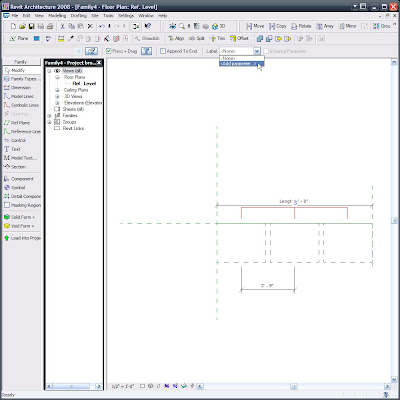
Here's the "NUMBER OF CABINETS parameter's" parameters: (Nice use of the language/lingo -I think)...
5) -Or is it 11?...Anyways, again Via clicking the "Family Types..." button we can and must set up the following additional, necessary Parameters:
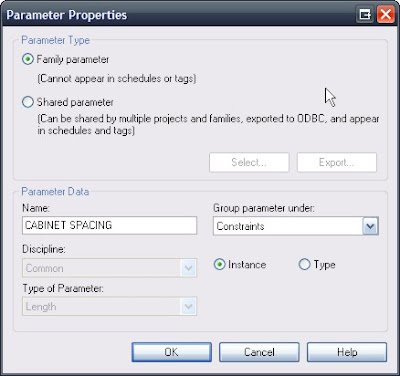
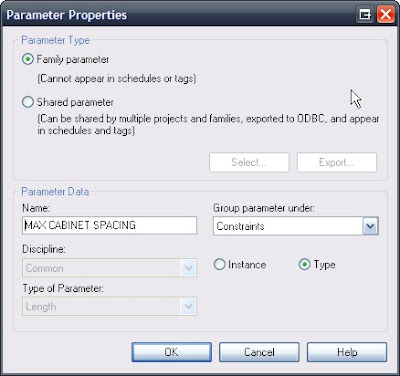
This last parameter I attributed to the dimension below:
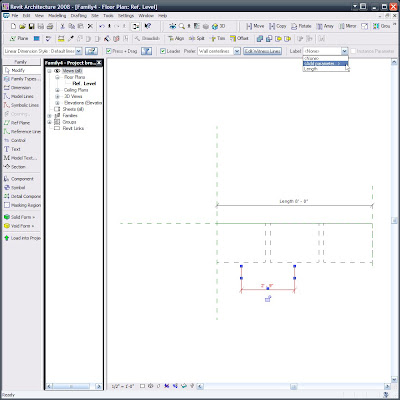
Now, you should know that when I entered the formulas, per the following image (which you can and really must consider as being the next step!!!) the dimension (shown above) needed to be deleted. I let that happen and didn't question it later on since the family works without it (as long as you don't set the overall length below 6'-0"... yes we could place more constraints via a conditional statement to allow for that but for this particular family I didn't find it necessary to have a multiple, double cabinet be so small...I say let it break in that case, it's just too illogical)
So now make the parameters be the following formulas and values, making sure to hit APPLY after inputting each formula. (Remember formulas ARE case sensitive!!!)
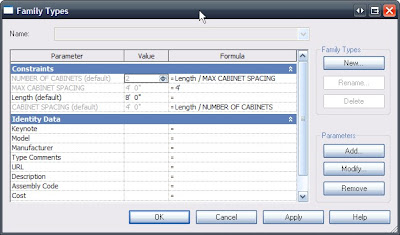
This time while I was creating this line based cabinet family (and after letting the dimension be deleted during the error/warning stage) the middle cabinet disappears...There is actually a good reason for that and I eluded to it earlier, way back in step #3... Even if you don't care to go back and look here is the 'fix'.
Step Whatever): Edit one of the Array Groups and select the cabinet and click the Properties button:
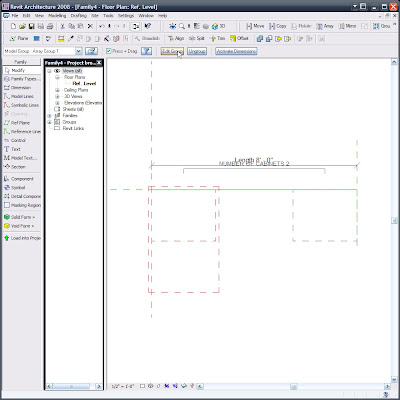
When you get down into it's Type Parameters look for the Width parameter and click the tiny little = (equal) button...(Actually I think Autodesk tried to hide that = button from us :-))
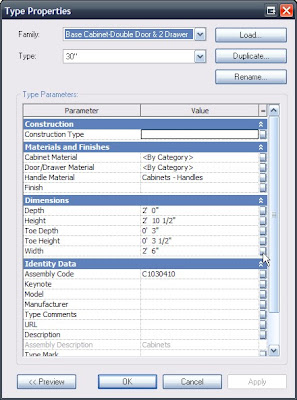
Now set that equivalence of the Length parameter to CABINET SPACING.
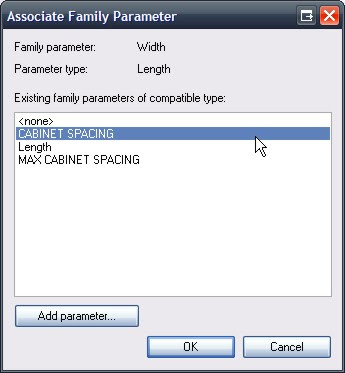
Now everything seems to work brilliantly!!!
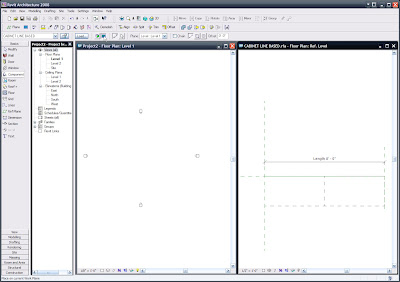
So we can load it into a project and input them via the Component command.
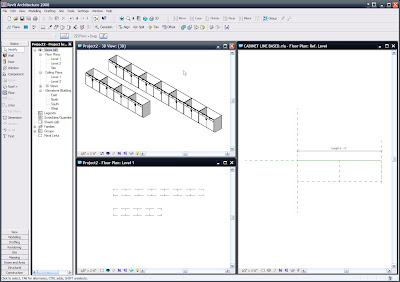
One final note: We may (actually we do!!!) want to go to SETTINGS/FAMILY CATEGORY AND PARAMETERS...:
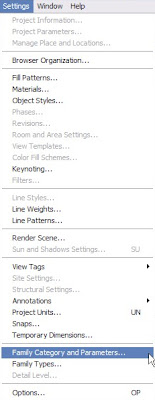 and set (unless we previously set this) Line Based Families' "Family Category to be Casework, like below... But if not we can do it anytime and then reload!!!
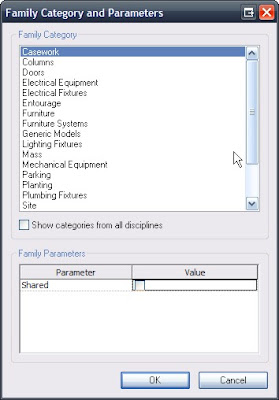 This goes for exposing materials, etc., etc., ...
NOW FOR THAT TRELLIS:
I am only including the text of it since the step-by-step takes about an hour to demonstrate live (with talking :-)) and with screen captures added would take me a lot longer and enough is enough for tonight!!! Also note that the trellis recipe may require some interpretation, since it is purely a copy/paste of my personal notes, for demonstration purposes (By the way, this Demo kicked some ass and opened some eyes at the LA RUG meeting in July where I presented it for the more than 100 Rev-Heads in attendance). The reason that I say all this is that the directions are (mostly) in exact order, yet may possibly be in need of connecting some dots... In any case I hope those directions help and well, I am confident that they will, but if you need help just drop me a comment and I'll help you out further. See you soon!!! -J
Consider, Plan, Think, Re-Consider, Re-Think, then Create.
Consider (what you want), Plan (the parametric needs), Think (about what is needed NOW... Remember you can always make the family progressively more complex), Re-Consider (how complex it needs to be), Re-Think (the final output needs...don't put in any more than you need but no less either), then Create (the best family you can). Also mix-in a conversation with others...this always helps prove or disprove perceived concepts and usually saves overall project time.
The Cabinet family we are about to create (well similar parameters to this, at least) can be used for many other families, one of which I will include a step-by-step of (in text format). It will be the main portions of a trellis.
More about the Trellis following the Cabinet below, so on with the Cabinet sheooow...(Yeah, I was watching a repeat of Elvis on the Ed Sullivan Show...sorry for that rhyme, etc.)
1) Create a new 'Generic Model Line Based' family.
 2) Change the "Length" parameter to 8'-0" via the "Family Types..." button.
 Just like this...
 Good so far...
3) Load a Cabinet. (If you don't already know, this is what is called nesting a family. I like to call them bird families...) -yes that's a (bad) joke!
 I am using the Double Door & 2 Drawer, as you can see.
Note how this cabinet comes in at it's default size...we'll be synchronizing and locking that to a parameter later but since we haven't created the parameter yet we'll do some other necessary work first...

Such as Locking the Cabinet to the Ref Planes. (Note: To get this line based family to work this time I did have to re-do this locking after I constrained the objects to the upcoming parameters, (last time I showed a colleague this it worked fine, without re-locking...It's all about process) so be ready for the family to potentially fight you as you go...Flex every step of the way so it's not too painful.)
Align/Lock to the start:

Align/Lock to the insertion point (Yes, the intersection of these Ref Planes is the insertion point, so if you need an offset insertion be aware of that):

Where are now, #4)? I think so...No matter, the next one may seem odd no matter the number.
Array the cabinet 3 times; constrained, grouped & associated. Then select one of the array group members and select the Array Control Line, (the odd part is the Array Control Line disappears when you're able to select it) add the parameter "NUMBER OF CABINETS" (similar to the one that follows the next image) and it will then be associated to the array.
Below is an image of the Control Line selected...The oddity is that the Control Line seems to disappear or at least go invisible when hovering over it, so if you want to select it (and we do) and that control line disappears then click there, you are sure to select it since it looks like you can't. Yes that IS what I said. Perhaps at AU I can get an answer from a developer as to why this is the case....

Here's the "NUMBER OF CABINETS parameter's" parameters: (Nice use of the language/lingo -I think)...

5) -Or is it 11?...Anyways, again Via clicking the "Family Types..." button we can and must set up the following additional, necessary Parameters:


This last parameter I attributed to the dimension below:

Now, you should know that when I entered the formulas, per the following image (which you can and really must consider as being the next step!!!) the dimension (shown above) needed to be deleted. I let that happen and didn't question it later on since the family works without it (as long as you don't set the overall length below 6'-0"... yes we could place more constraints via a conditional statement to allow for that but for this particular family I didn't find it necessary to have a multiple, double cabinet be so small...I say let it break in that case, it's just too illogical)
So now make the parameters be the following formulas and values, making sure to hit APPLY after inputting each formula. (Remember formulas ARE case sensitive!!!)

This time while I was creating this line based cabinet family (and after letting the dimension be deleted during the error/warning stage) the middle cabinet disappears...There is actually a good reason for that and I eluded to it earlier, way back in step #3... Even if you don't care to go back and look here is the 'fix'.
Step Whatever): Edit one of the Array Groups and select the cabinet and click the Properties button:

When you get down into it's Type Parameters look for the Width parameter and click the tiny little = (equal) button...(Actually I think Autodesk tried to hide that = button from us :-))

Now set that equivalence of the Length parameter to CABINET SPACING.

Now everything seems to work brilliantly!!!

So we can load it into a project and input them via the Component command.

One final note: We may (actually we do!!!) want to go to SETTINGS/FAMILY CATEGORY AND PARAMETERS...:
 and set (unless we previously set this) Line Based Families' "Family Category to be Casework, like below... But if not we can do it anytime and then reload!!!
 This goes for exposing materials, etc., etc., ...
NOW FOR THAT TRELLIS:
I am only including the text of it since the step-by-step takes about an hour to demonstrate live (with talking :-)) and with screen captures added would take me a lot longer and enough is enough for tonight!!! Also note that the trellis recipe may require some interpretation, since it is purely a copy/paste of my personal notes, for demonstration purposes (By the way, this Demo kicked some ass and opened some eyes at the LA RUG meeting in July where I presented it for the more than 100 Rev-Heads in attendance). The reason that I say all this is that the directions are (mostly) in exact order, yet may possibly be in need of connecting some dots... In any case I hope those directions help and well, I am confident that they will, but if you need help just drop me a comment and I'll help you out further. See you soon!!! -J
1) New Family “Generic Model” (Square Column)
a. B Wd (B = Beam, C = Column, etc.)
b. B Ht
c. B Lng
d. C Wd
e. C Dp
f. C Top
3) Create Square Colum
a. Use the 3 shared Parameters: C Wd, C Dp, C Top
4) Create Round Column (Save As ???)
a. Use the 3 shared Parameters and Add:
b. C Rad (Make this equal the following formula)
i. = C Wd / 2
5) Make
a. B Wd =
b. B Ht = C Top+1.5
c. B Lng =
d. C Wd =
e. C Dp =
f. C Top =
6) New Family “Generic Model”
7) Create Beam
a. Use the 3 shared Parameters: B Wd, B Ht, B Lng
8) New Family “Generic Line Based”
a. Make Length 8’-0”
9) Insert Beam Perpendicularly to length line, Place it and Lock.
10) Copy it to the opposite end & Lock.
11) Add & Place Columns
12) Create a ‘Family Types’ Instance Parameter: Column Type and choose Generic Models. (or change column & beam families to their actual category and use those here)
a. Select all columns and set them to have the parameter Column Type.
13) Array 1st beam 2’-0”: Group & Associate, Move to 2nd, Constrain.
a. Select the Arrayed Beam and select the Array Control Line and add a Parameter: “Number of Beams”, Constraints, Instance and OK.
14) Dimension the 1st & 2nd Beams
a. Make it the Parameter “Beam Spacing”, Constraints, Instance and OK.
15) GoTo Family Types and add the following Parameter:
a. “Maximum Beam Spacing” , Constraints, Common, Length, Type OK in this dialog, then APPLY at the next; (Not OK…we want to stay in this dialog for a minute).
16) Make the Parameters the following Formulas:
a. Maximum Beam Spacing = 4’-0”
b. Number of Beams = Length / Maximum Beam Spacing
c. Beam Spacing = Length / Number of Beams
Subscribe to:
Posts (Atom)